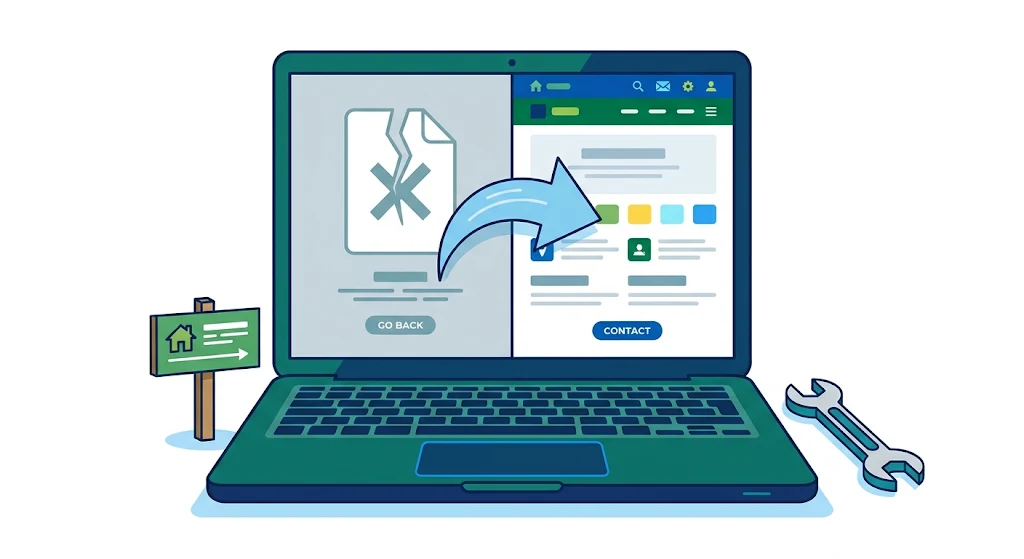

WordPress Redirect at a Glance
| Way | Best for | Skill needed |
|---|---|---|
| Rank Math Redirections | Most WordPress sites | Low |
| Dedicated redirect plugin | Large lists of redirects | Low |
| cPanel Redirects tool | Whole-site or folder moves | Low to medium |
| .htaccess edit | Servers running Apache | Medium |
| Server rules (such as NGINX) | Developers and VPS owners | High |
Why a WordPress Redirect Matters
Imagine a customer clicks an old link and lands on a “Page not found” error. They leave, and Google sees a dead end. A redirect fixes this by sending them straight to the right page.
Use a WordPress redirect when you:
- Change a page or post address
- Delete a page and want to send visitors to a related one
- Move to a new domain
- Switch from HTTP to HTTPS
- Merge two similar pages into one
- Fix broken links reported in Google Search Console
Done right, a WordPress redirect protects both your visitors and your search visibility.
Which Redirect Type Should You Use?
The type tells Google how to treat the move.
| Type | Use it when | Example |
|---|---|---|
| 301 | The move is permanent | You changed a page address for good |
| 302 or 307 | The move is temporary | A page is down for a few days |
| 410 | You deleted a page and have no replacement | An old offer that is gone |
Google says permanent redirects tell it that the target should be treated as the canonical page, while temporary redirects do not, and advises you to use permanent redirects when you are sure the redirect will not be reverted. Rank Math explains that a 301 should be used when a page, site or domain has moved for good, while a 302 or 307 suits temporary moves, and that a 410 is for content you have deliberately deleted with no replacement.
If you are unsure, a 301 is the usual WordPress redirect for permanent changes.
Way 1: Use Rank Math Redirections
If you already use Rank Math for SEO, this is the easiest option.
- In your WordPress dashboard, go to Rank Math SEO, then Redirections.
- Click Add New.
- In Source URL, enter the old address.
- In Destination URL, enter the full new address.
- Choose the redirection type, for example 301 Permanent Move.
- Click Add Redirection.
Rank Math notes that if the Redirections module is missing, you can switch on Advanced Mode under Rank Math SEO, then Dashboard. You can also pick a match type, such as Exact or Starts With, which helps when you redirect a whole group of pages.
Way 2: Use a Dedicated Redirect Plugin
If you do not use Rank Math, a dedicated redirect plugin does the same job. Look for one that is updated regularly, tested with your WordPress version and well reviewed.
These plugins usually let you:
- Add one redirect at a time
- Import a list of old and new URLs
- See a log of broken links people hit
Install only one WordPress redirect tool. Two at once can create conflicts and loops.
Way 3: Use the cPanel Redirects Tool
Many hosts give you cPanel. Its redirect tool works at the server level, without a WordPress plugin.
- Log in to cPanel.
- Find Redirects in the Domains section.
- Choose the redirect type, such as Permanent (301).
- Select your domain.
- Enter the old path and the new full address.
- Choose whether to redirect with or without “www”.
- Click Add.
Menu names can differ slightly between hosts. If you are new to cPanel, see our guide on what cPanel is.
Way 4: Edit the .htaccess File
On Apache servers, redirects can live in the .htaccess file. Google notes that server-side redirects are the most reliably interpreted and can be set up in server configuration, for example .htaccess on Apache.
A simple permanent redirect from one page to another looks like this:
Redirect 301 /old-page/ https://www.yourwebsite.com/new-page/Before you edit:
- Back up the file. One wrong character can take your site offline.
- Add your redirect lines above the WordPress rules, not inside them.
- Save, then test straight away.
If this feels risky, use Rank Math or ask your host or developer to do it.
Way 5: Set Redirect Rules on the Server
If your site runs on NGINX or a VPS, redirects are written in the server configuration. Google lists NGINX rules as one way to set up server-side redirects.
This route suits developers or managed hosting teams. If you use a VPS and are not technical, ask your provider to do it. See our guide on VPS hosting in Nigeria if you are considering one.
How to Test Your WordPress Redirect
Always test after you add a WordPress redirect:
- Open a private browser window.
- Type the old URL.
- Check that you land on the correct new page.
- Check on your phone as well.
- Look for loops, where the page keeps reloading.
- In Google Search Console, use the URL Inspection tool on the new page.
Also update your internal links so they point to the new address directly. A redirect is a safety net, not a replacement for correct links.
Common Redirect Mistakes
- Redirecting everything to the home page. Send each old page to the closest relevant new page.
- Using a temporary redirect for a permanent move. Use a 301 when the change is permanent.
- Creating redirect chains. A to B to C slows pages. Redirect A straight to C.
- Redirect loops. A sends to B, and B sends back to A.
- Forgetting to back up before you edit .htaccess.
- Running two redirect tools that fight each other.
- Not testing. Always check on desktop and mobile.
If your page still does not appear in search, see why a website may not be showing on Google.
How Leanna Hosting Can Help
Setting up a WordPress redirect or fixing broken links can be stressful if you are not technical. Leanna Hosting designs, hosts and manages websites for Nigerian businesses, with local support and billing in Naira. We can set up your redirects, move your site safely and keep it running. Read our guide on how to migrate a website to a new host without downtime, see our hosting plans, or call 09024991566 or 09084990920.
Frequently Asked Questions
1. What is a WordPress redirect?
A WordPress redirect automatically sends visitors from one URL to another, for example from an old page address to a new one.
2. How do I redirect one URL to another in WordPress?
Use a redirect tool such as Rank Math, enter the old URL as the source and the new URL as the destination, choose a redirect type and save. You can also use cPanel or edit .htaccess.
3. What is a 301 redirect?
A 301 is a permanent redirect. It tells browsers and Google that the page has moved for good.
4. What is the difference between a 301 and a 302 redirect?
A 301 is permanent. A 302 is temporary. Use a 301 for lasting changes and a 302 for short-term ones.
5. Do redirects affect SEO?
Done correctly, they help protect your search visibility by sending visitors and Google to the right page. Redirect chains, loops and wrong types can cause problems.
6. How do I add a WordPress redirect from HTTP to HTTPS?
Install an SSL certificate, set your site address to HTTPS, then redirect HTTP to HTTPS using your host’s tool, a plugin or server rules. Test every page afterwards.
7. Can I redirect a deleted page?
Yes. If a related page exists, send it there with a 301. If nothing replaces it, you can use a 410 to show the content is gone.
Fix Broken Links the Right Way
Broken links cost you visitors and sales. A correct WordPress redirect keeps customers on track, and Leanna Hosting can set it up for you.
Call or WhatsApp: 09024991566 or 09084990920 Visit: www.leanna.ng
Explore Leanna Hosting’s hosting plans and let our team handle the technical work.